How-To Guide
Learn how to use this system, one step at a time.
This guide uses simple words and short steps. Pick a topic below to start. Each one has a picture and easy numbered steps.
How to Ring Up a Sale
Use the Point of Sale screen to sell ammo, optics, and other items. Follow these steps to finish a sale fast.
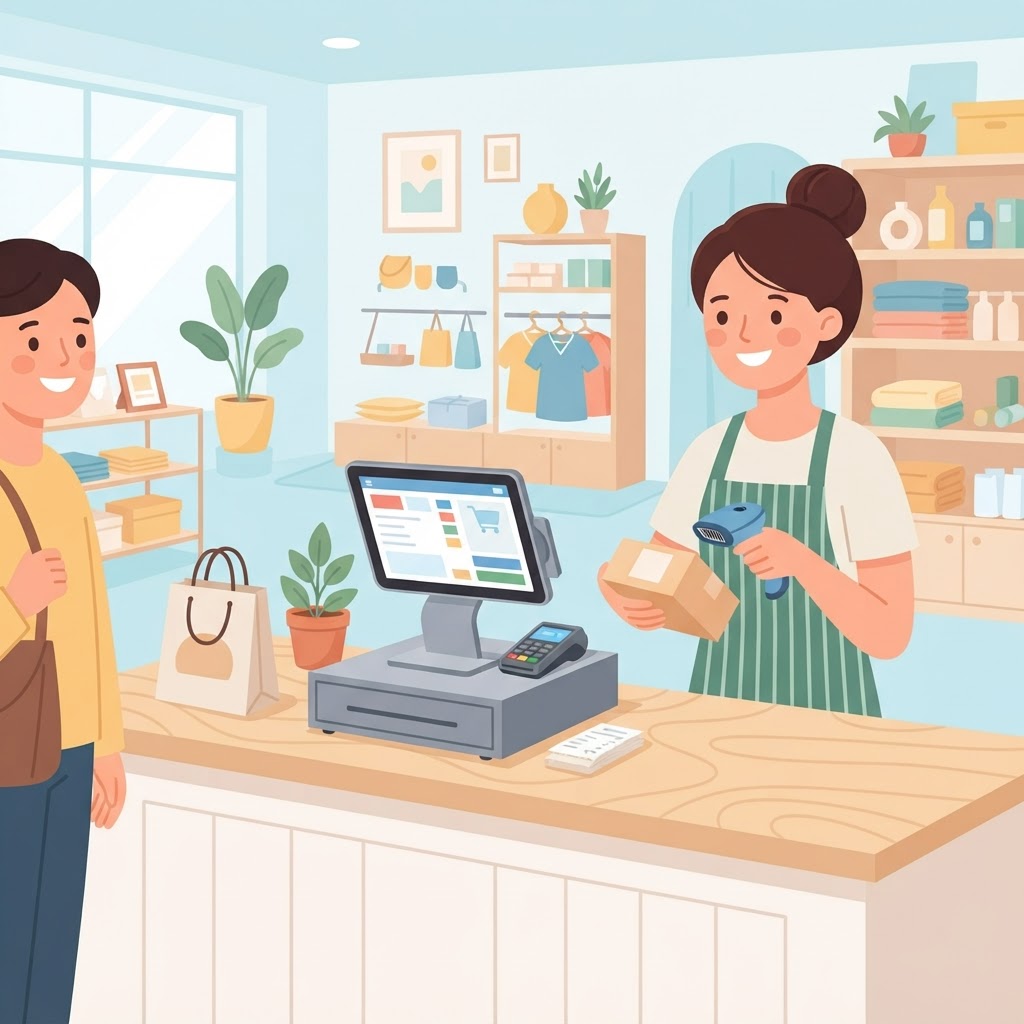
- 1
Click Point of Sale on the left menu.
- 2
Type the item name in the search box, or scan its barcode.
- 3
Click the item to add it to your cart on the right.
- 4
To sell more of the same item, tap the + button on the item.
- 5
Type the customer name (or leave it as Walk-in).
- 6
Pick the payment method (Cash, Credit Card, and so on).
- 7
Check the tax percent is right. The total updates by itself.
- 8
Click the Complete Sale button when the cart looks right.
If the item has a barcode, you can scan it. The app finds it for you. No need to type.
How to Sell a Firearm
Selling a gun is different. You must finish a Form 4473 and a NICS background check first. Never skip these steps.

- 1
Add the firearm to the cart just like any item.
- 2
A red box will show up. It reminds you a Form 4473 and a NICS check are needed.
- 3
Go to Form 4473 on the left menu and click New Form.
- 4
Fill out the buyer's name, address, date of birth, and ID info.
- 5
Answer all the Yes/No questions in Section 21 for the buyer.
- 6
Send the NICS background check. Wait for the answer.
- 7
If NICS says Proceed, you may finish the sale and give the gun to the buyer.
- 8
If NICS says Denied, you cannot sell the gun. Tell the buyer politely.
- 9
When done, click Complete Sale. A box will pop up. Check each item, then click OK.
Keep all Form 4473 papers for 20 years. The law says you must. The app saves a copy for you too.
How to Handle a NICS Delay
Sometimes the background check is not done right away. This is called a Delay. Here is what to do while you wait.

- 1
Tell the buyer the check is delayed. They must wait. Do not give them the gun.
- 2
The app marks the form as NICS Delayed for you.
- 3
Wait up to 3 business days for an answer from NICS.
- 4
Check the Compliance Center each day for an alert about the delay.
- 5
If NICS says Proceed within 3 days, finish the sale.
- 6
If NICS says Denied, do not sell the gun.
- 7
Write down what happened in the form's notes before you finish.
If you do not hear back in 3 business days, ask your manager. They know the rule for your state.
How to Open and Close the Cash Drawer
The cash drawer tracks the money in the register. Open it at the start of your shift. Close it at the end to count the money.

- 1
Click Cash Drawer on the left menu.
- 2
To open: count the money you start with, and type how many of each bill and coin.
- 3
The app adds it up for you. Click Open Drawer.
- 4
When someone pays cash, the app adds it to the drawer by itself.
- 5
At the end of your shift, click Close Session.
- 6
Count the money in the drawer again. Type how many of each bill and coin.
- 7
The app shows your Expected Cash and the Variance (over or short).
- 8
Click Finish to close. You can print a Z-Report for your records.
A small variance is normal. A big one means you should check your count and your sales. Tell your manager.
How to Add Items to Inventory
Before you can sell something, it must be in the system. Add firearms and products (like ammo and accessories) here.
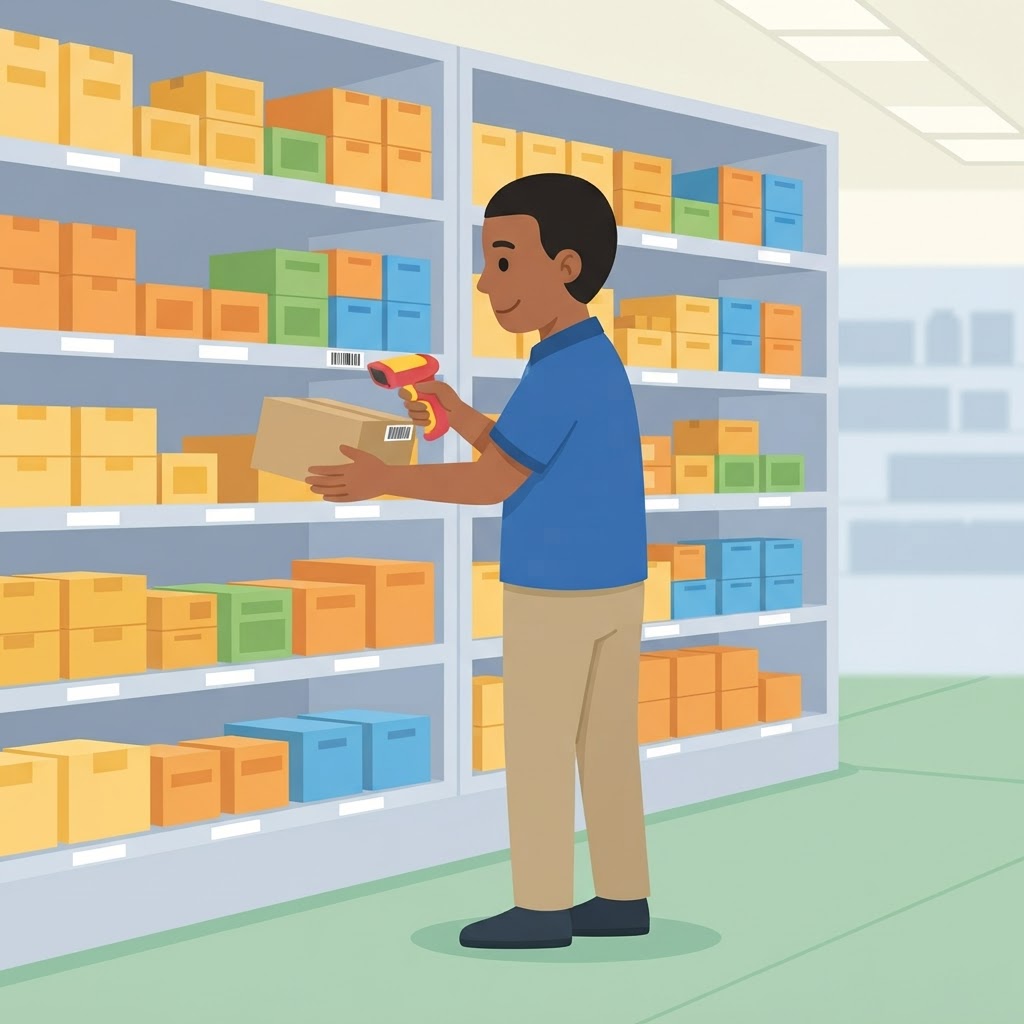
- 1
To add a firearm: click Firearms / A&D Book on the left menu, then click Add Firearm.
- 2
Type the serial number, maker, model, caliber, and type (pistol, rifle, and so on).
- 3
Type where you got it, the date, and what you paid. This is for the bound book.
- 4
Pick the status (In Stock) and a storage spot. Click Save.
- 5
To add a product: click Ammo & Accessories, then click Add Product.
- 6
Type the name, SKU, brand, and category.
- 7
Type the price and how many you have in stock.
- 8
For ammo, check the Is Ammunition and Age Restricted boxes. Click Save.
Every firearm must have a serial number. If it has no number, mark it as a Privately Made Firearm. The law needs this.
How to Add a New Customer
You need customer info for firearm sales and Form 4473. Add them once, and the app remembers them next time.

- 1
Click Customers on the left menu, then click Add Customer.
- 2
Type the first and last name (these are required).
- 3
Add the phone, email, and address if you have them.
- 4
Type the date of birth and ID info (type, number, state, and expiration).
- 5
If the person is not allowed to buy a gun, check Known Prohibited Person and say why.
- 6
Click Save. The customer is now ready for the next sale.
Always look at the buyer's ID and check it is not expired. The app shows you the expiration date so it is easy to check.
Still need help? Ask your store manager or check the Compliance Center.